
How To

macOS How To: Enable AAC and aptX Bluetooth Audio Codecs

By default, macOS defaults to the SBC audio codec for Bluetooth headphones regardless of whether your headphones supports AAC or aptX. macOS itself, however, does support these codecs, it just needs enabling. In my case, I am using the Bang & Olufsen Beoplay H9i that support the AAC codec, but this guide also includes a […]

macOS How To: Enable AAC and aptX Bluetooth Audio Codecs Read More »
Linux How To – Install BSD’s EasyEditor on CentOS 7

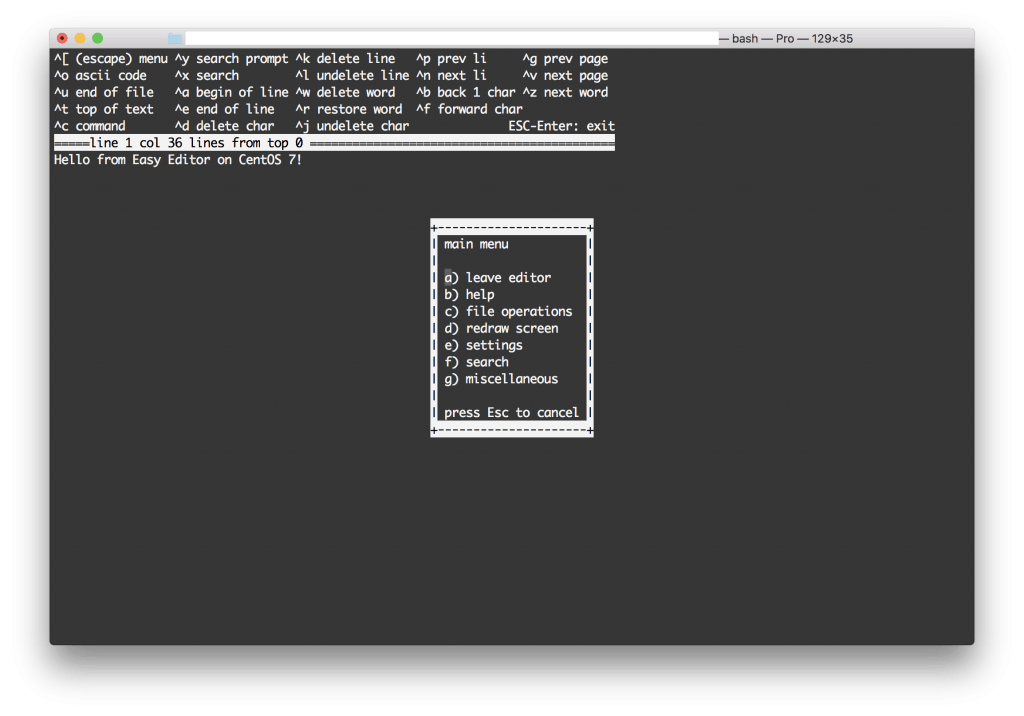
Easy Editor (ee) is one of my favourite built-in utilities from FreeBSD. It’s my preferred text editor (vs vi, vim, nano, pico etc). Thankfully it is easy enough to install it on CentOS 6 and 7 (tested on 2018.03.18). 1 – Prerequisites Firstly, you’ll need to install some prerequisites: yum install libX11 libXdmcp This command should install

Linux How To – Install BSD’s EasyEditor on CentOS 7 Read More »

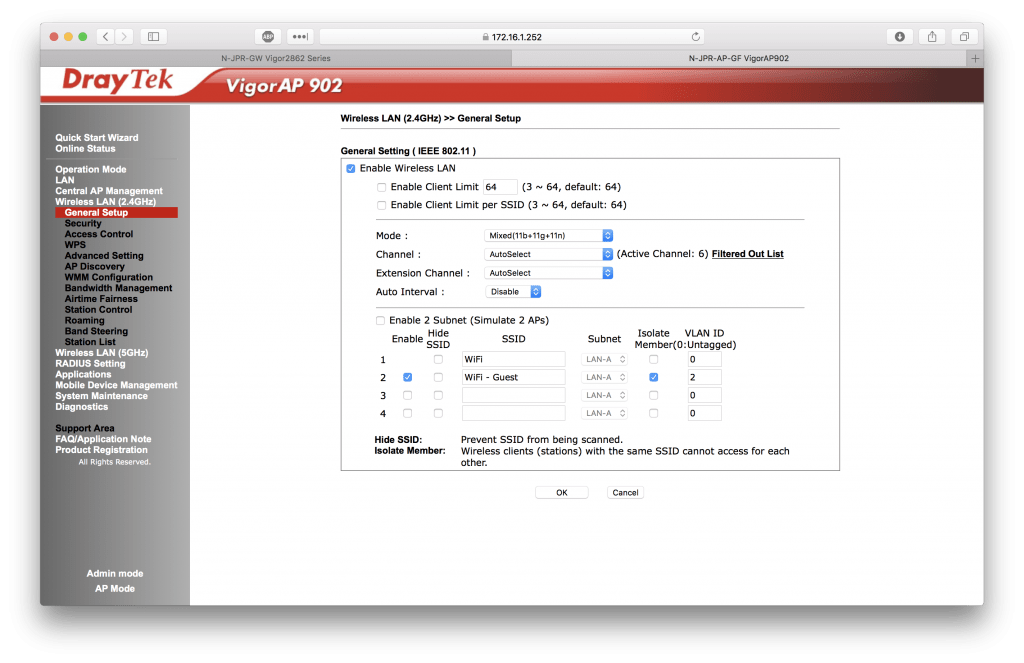
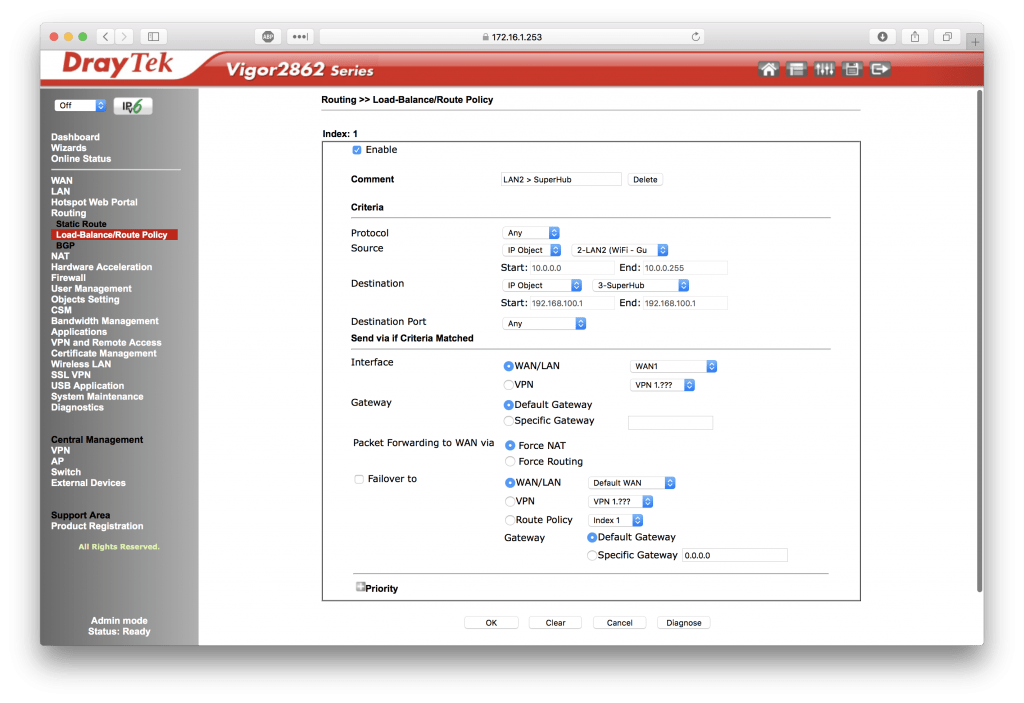
DrayTek How To – Create Guest WLAN/Wireless SSID with VLAN Tagging

In this guide, we will be creating a guest WLAN/WiFi network and isolate it from your existing network by creating a guest VLAN and putting all devices on this VLAN on a operate subnet. This can be scaled to create numerous VLANs but we’ll just be creating two (your own network, and a guest network).

DrayTek How To – Create Guest WLAN/Wireless SSID with VLAN Tagging Read More »

macOS How To: Use Touch ID to authenticate as sudo in Terminal

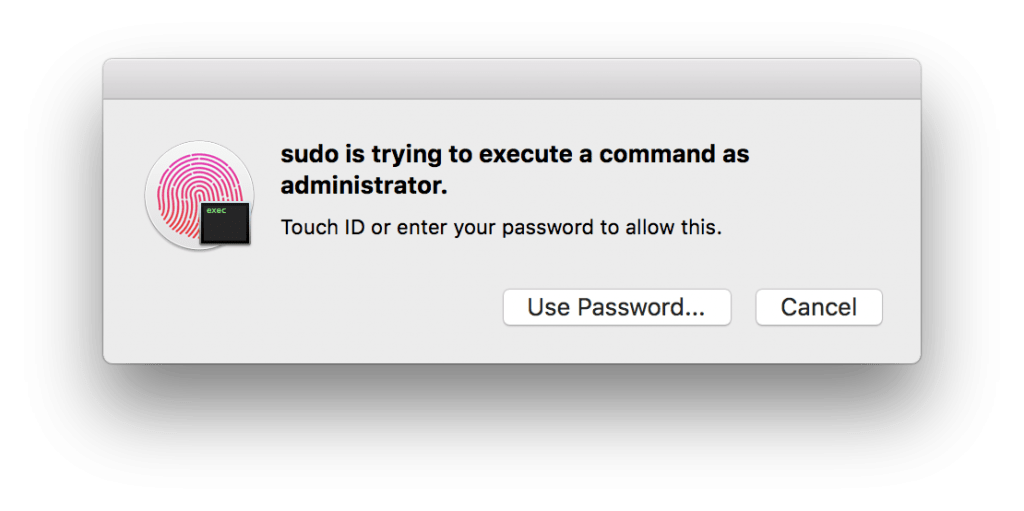
TL;DR:  To authenticate as sudo in Terminal, paste the following line into /etc/pam.d/sudo auth       sufficient     pam_tid.so Step-by-step Instructions: Firstly you’ll need to open /etc/pam.d/sudo in a file editor within Terminal. You can do this by running the following command: sudo vi /etc/pam.d/sudo Then, press the i key on your keyboard, this will allow you

macOS How To: Use Touch ID to authenticate as sudo in Terminal Read More »

macOS How To: Bypass Gatekeeper for “App cannot be opened. You should move it to trash.”

To bypass Gatekeeper and open an app when “App cannot be opened. You should move it to trash.” comes up, simply open Terminal (Applications > Utilities > Terminal) and run the following command: sudo xattr -r -d com.apple.quarantine /Applications/name of app.app You’ll need to replace name of app.app with the name of the application you’re trying

macOS How To: Bypass Gatekeeper for “App cannot be opened. You should move it to trash.” Read More »